Avatar Authoring - Hand Tracking

Kemorig supports hand tracking with Ultraleap / Leap Motion devices.
Hand tracking is relatively complex, and may require additional tweaking to get good results with your model.
This page has information to help achieve the best results.
Model Considerations
Hand Tracking uses Inverse Kinematics (IK) to move a character’s arms with their hands. For best results, your character’s model should be built with IK in-mind.
kemorig tries to accomodate any skeleton, but you probably want your model to fall into one of the following styles:
No Twist Bones
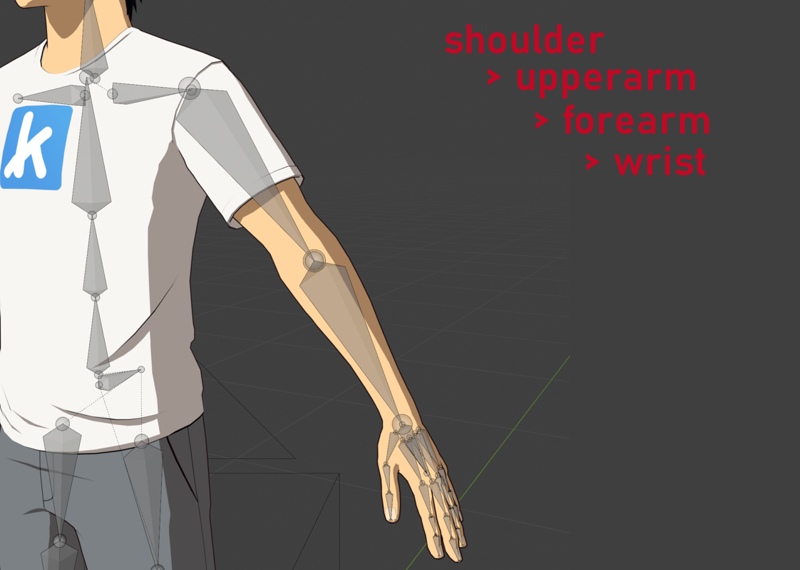
This is the simplest setup for an arm skeleton.
This style of arm can have difficulty deforming well when twisting wrists or raising the upper arm into extreme positions. But you can still tweak settings to get decent results in kemorig.
1 Upperarm Bone, 1 Forearm Bone, with Twist Bones
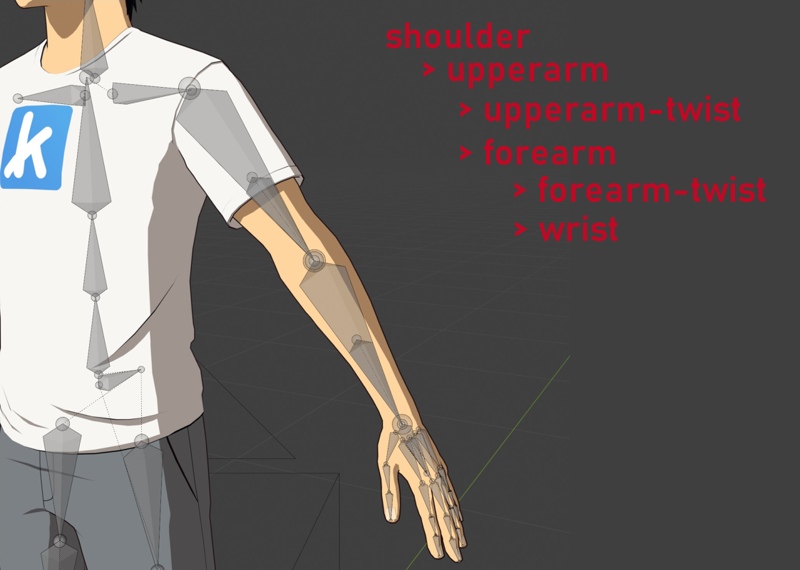
This is the ideal skeleton for kemorig.
This skeleton is the same as the simplest one, but has twist bones inserted into the heirarchy. The heirarchy down the arm is still shoulder > upperarm > forearm > wrist.
Some models may only have a twist for the wrist, but not the upper arm. This can also produce good results.
2 Upperarm Bones, 2 Forearm Bones
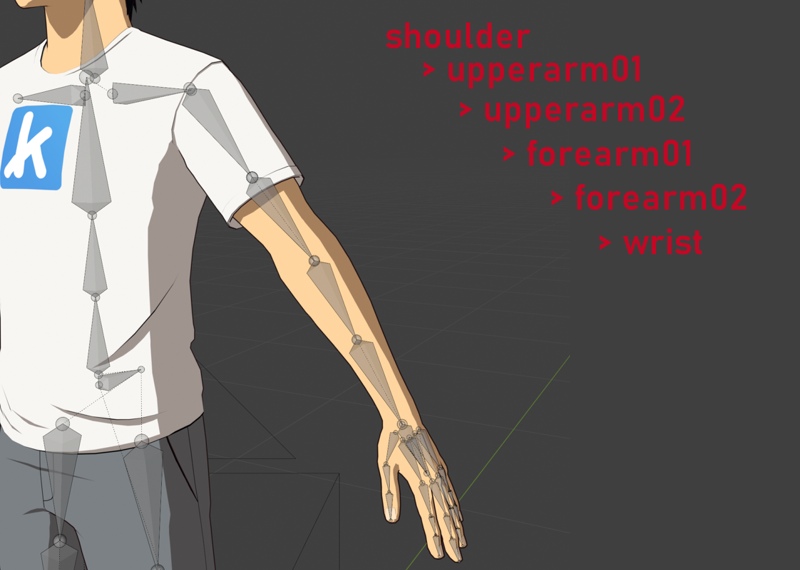
This skeleton works the same as the last one, but the heirarchy is different. The heirarchy down the arm is shoulder > upperarm01 > upperarm02 (twist) > forearm01 > forearm02 (twist) > wrist.
A skeleton like this will need to manually specify its arm bones when setting up Hand Tracking (Note: the New Avatar Tool will attempt to do this automatically).
Other
If your character’s skeleton does not match one of the examples above, you can probably still get it to work. But kemorig’s Hand Tracking will only support 1 twist bone each for the upperarm and forearm out of the box.
Hand Tracking Reference Bone
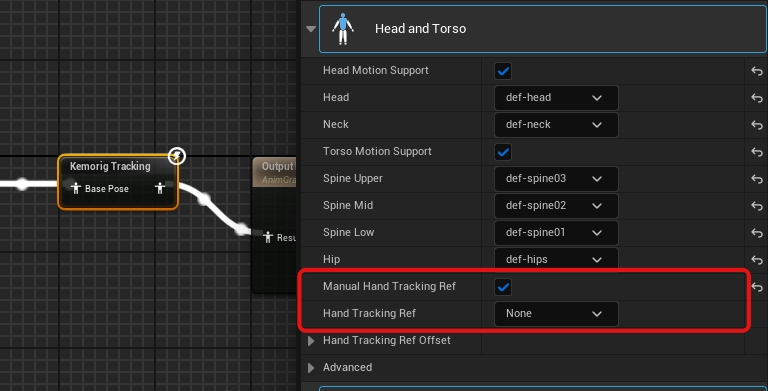
Tracked hands will be positioned relative to a reference bone on your Avatar’s model. By default, kemorig uses your Avatar’s Upper Spine bone.
If you like, you can manually specify a different bone. This is useful if you want fine control over where your hands are positioned, or if you need to adjust them during different animations.
These settings are found in the Kemorig Tracking node, under Head and Torso.
Adjusting Tracker Offset in Motion Settings
You can also offset location, rotation, or scale of hand tracking inside Motion Settings in the Hand Tracker category.
This is a good option if you wish to adjust hand tracking position in your avatar, but do not wish to author a special bone.
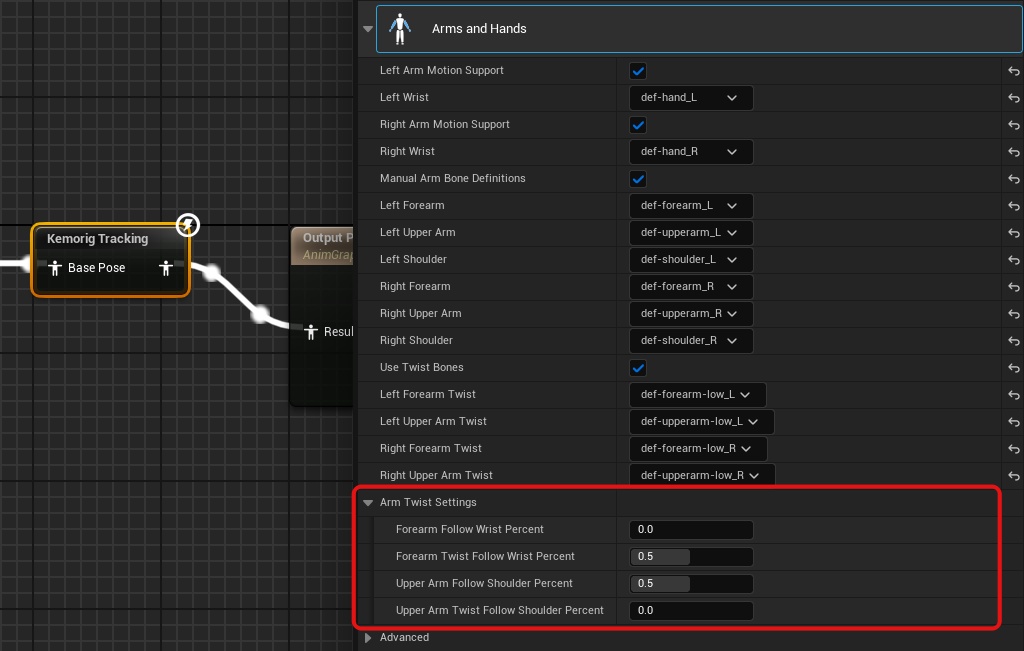
Arm Twist Settings
You can adjust how your Avatar’s arms twist when moving. This is especially important with wrists, which when twisted can often cause arms to look distorted.
These settings are also very useful if your model does not have twist bones, to help hide stretching in the model when twisting.
These settings are found in the Kemorig Tracking node, under Arms and Hands > Arm Twist Settings.
IK Pole Target Bones
Advanced users can manually specify bones to act as pole targets for IK arms.
When your character’s arms are positioned with IK, kemorig has to know where to position the elbows. It will automatically position elbows by default, but sometimes you may want to use bones to guide them. These bones are known as “IK Pole Targets”.
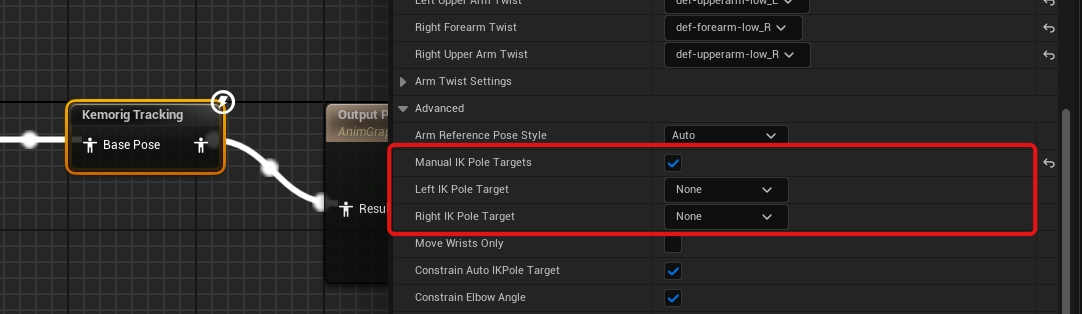
Pole target bones will not be used automatically! They will only be used if your Avatar’s Motion Settings blend in their influence.
For example, you may have a Stance with a complex pose where precise elbow placement is important. This Stance can override Motion Settings to use your avatar’s IK Pole Target bones.
Tip: even if your skeleton does not have dedicated IK pole bones, it sometimes looks good to specify the forearm bone as a target. This will cause Hand Tracking to use the pre-hand-tracking forearm position as an elbow target.